


OVID POS Installation Guide
Choose the installer for your operating system, then follow the first-launch steps to register and activate OVID POS.
Download illustrated guide (PDF)
Windows EXE
Windows on a 64-bit Intel or AMD PC.
- Download and open the EXE. Open it from Downloads and follow the installer prompts.
- Launch OVID POS. Find OVID POS in the Windows Start menu when installation completes.
Windows MSI
Windows on a 64-bit Intel or AMD PC. Your IT team may prefer this format.
- Use the MSI if you have not installed the EXE. Open it from Downloads and follow the Windows Installer prompts.
- Launch OVID POS. Find it in the Windows Start menu.
Windows SmartScreen: Windows protected your PC
Windows may show a Microsoft Defender SmartScreen reputation warning when you open a downloaded installer.
- Choose More info. Check that the app name matches the OVID POS installer you downloaded from ovid.in.
- Choose Run anyway. Continue only after confirming the official download source and installer name. Then follow the installer prompts.
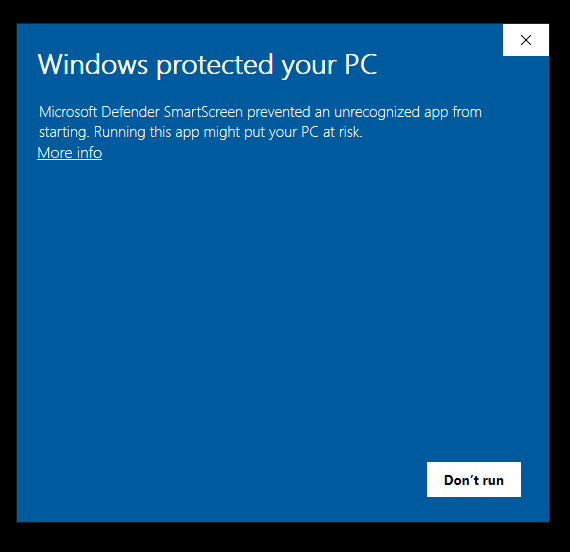
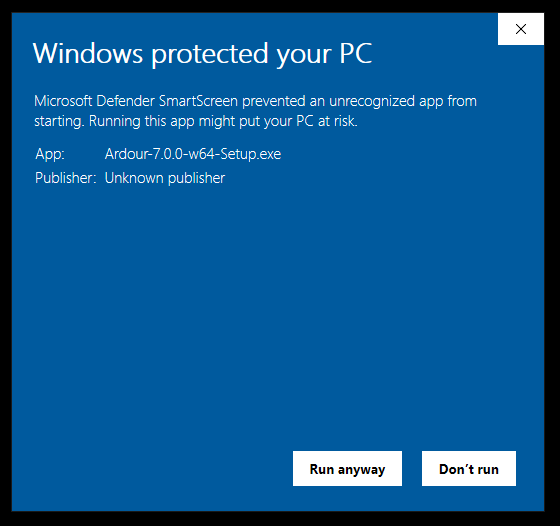
Example Windows screenshots from the Ardour installation guide. The app name shown is for Ardour. Your dialog should show the OVID POS installer.
Stop if Defender reports malware, the app name does not match, or your organisation blocks the option. Contact OVID support or your IT administrator.
Linux DEB
Ubuntu and Debian-based Linux on x86-64.
- Open a terminal in the folder containing the download. Run the command below.
sudo apt install ./ovid-pos-linux-x64.deb - Launch OVID POS. Open it from your applications menu once the package manager finishes.
Linux RPM
Fedora and RHEL-compatible Linux on x86-64.
- Open a terminal in the folder containing the download. Run the command below.
sudo dnf install ./ovid-pos-linux-x64.rpm - Launch OVID POS. Open it from your applications menu once the package manager finishes.
macOS DMG — Apple Silicon
Mac computers with an Apple chip, such as M1 or later.
This download is not currently available. Contact sales@ovid.in for availability.
- Check Apple menu → About This Mac. Choose the Apple Silicon package when it is available.
- Install from the disk image. Open the DMG, follow the instructions in the window to copy OVID POS to Applications, then open it from Applications.
macOS DMG — Intel
Mac computers with an Intel processor.
This download is not currently available. Contact sales@ovid.in for availability.
- Check Apple menu → About This Mac. Choose the Intel package when it is available.
- Install from the disk image. Open the DMG, follow the instructions in the window to copy OVID POS to Applications, then open it from Applications.
First launch and activation
- Create or sign in to your OVID account. On first launch, choose Create OVID account if you are new. Submit the requested business details.
- Verify your email and wait for approval. Email sales@ovid.in from your registered address. Use the subject ovid pos email verification and include your business name and registration reference if shown.
- Activate your computer. After approval, sign in online, confirm the store and plan shown, and select Activate this POS.
- Create your local login. Choose a local username and a password of at least 12 characters. Use this login for everyday work on this computer.
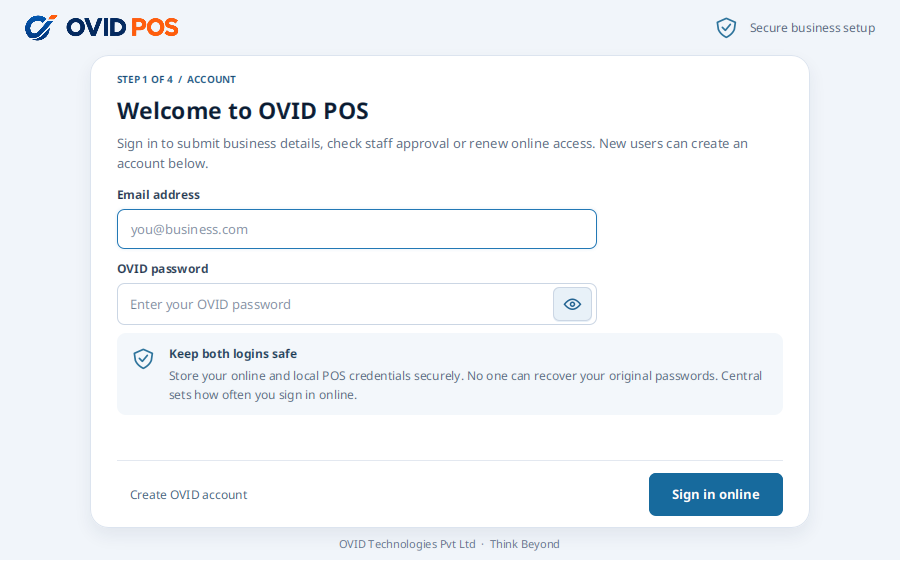
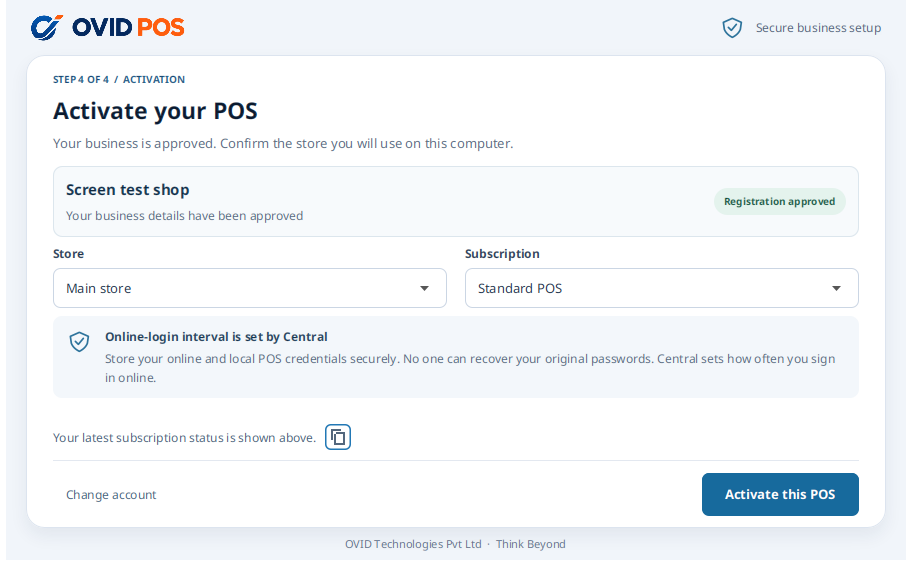
For technical support, email pos.support@ovid.in.